Too Many Pattern Attempts? Here is a Quick Fix


“Too many pattern attempts” is quite common error faced by Pattern unlock Android users that unfolds when 20 incorrect pattern unlock tries have been made accidentally (or deliberately). Many situations lead to this Phone lock, like maybe your Kid thought of it as an interesting game or someone intentionally wanted to lock you out of your smartphone. When this happens, your Android phone automatically suggests you to log in with your linked Google account and change the Pattern lock, but most of the times it is not as easy as it seems. This is because you might  not have turned your Wi-Fi or carrier Internet service on and also this error seems to be a common bug in most of the Android Phones.

So, even if you are sure about your Linked Google Account user name and Password there is a possibility that you may not still be able to get access to your Android phone by this method. When this happens there are always other effective methods you can try and resolve your problem

In this post we have collected all the methods that you can use to get rid of Too many pattern attempts error.

Method 1: Enabling Google Account

One of the main reasons why you may not be able to access your Android device with your Linked Google account is because you might have multiple accounts set up on your Phone like Facebook/YouTube or Twitter account. This leads to technical confusion and in the steps that follow we will guide you on how to unable these multiple accounts except your Google Account. It should however be noted that this method is not supposed to work with every Android device but there is no harm in trying.
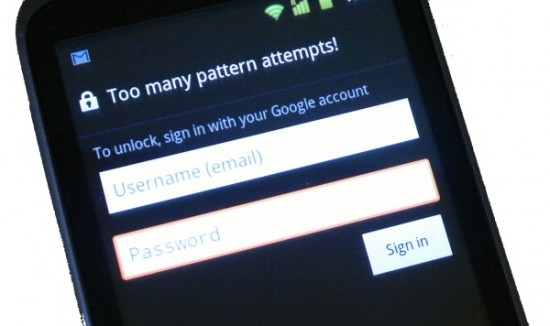
Android too Many Pattern Attempts

Step 1: Power off and then Power on your Android device.

Step 2: Start Tapping home button fast(4-5 times/sec) right after you see you Phone’s logo on screen. During this process you might notice Emergency call button popping up often and in that case you need to keep on tapping it and the home button simultaneously. Also, password or keypad screen may flash on your screen few times and you will also notice a lag time due to tapping and this is a part of the process.

Step 3: If this process has worked for you, you will see your Android home buttons at the bottoms which confirms that you have gained access to your device. If it doesn’t work for the first time, try again and you might want to take help of some other tech savvy guy with swift fingers to ensure fast tapping. The success rate of this process is about 15-50% so you might want to try again until you succeed.

Step 4: After you have gained access to your device navigate to Settings>Accounts & Sync.

Step 5: Now, under mange accounts remove all accounts except Google.

Step 6: Power off and On your device again, enter your Google account User Name and Password and you are ready to set a new pattern lock for your Android device.

Method 2: Using Desktop App

There is an App available on Desktop Android Online store and it can bee used free to bypass Android pattern lock.  The app is named as Screen Lock Bypass Pro and works only if you remember the username and Password of Google account that is linked with your Android Device. The app basically helps you bypass your device’s Pattern lock so you can enter the settings and change it from your Desktop.
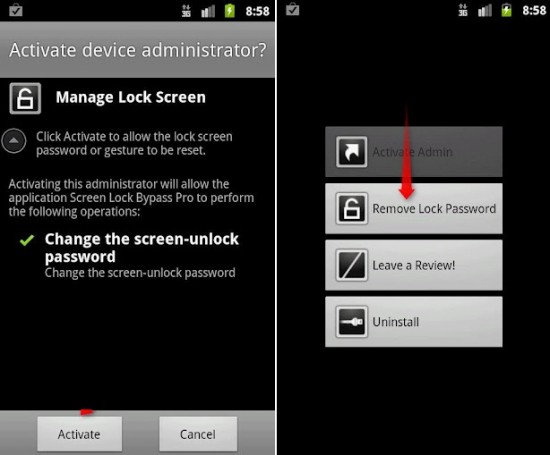
Desktop Android Pattern Unlock

Step 1: Log in using your Google Account Username and Password from Desktop Browser on play.google.com. It is necessary that you use the same Google account you have linked your Android device with. Once you are in the market Download Screen Lock Bypass Pro

Step 2: Select your Phone and wait for the app to Install.

Step 3: Go to Settings from your Desktop app then navigate to Accounts & Sync>Manage Accounts and remove all accounts except your Google account.

Step 4: Now, power off your device to trigger Too many pattern Attempts again and then Log in using your Google Account again to properly set new Pattern Lock.

Method 3: Using Google Account

This final method is supposed to work for almost all Android device’s but does come with some pre-requisites. This method will only work if you know the username and password of the Google account you have linked with your Android Device and you should also remember the original Pattern Lock.  However, if you don’t recall the Google account you linked your device with you can confirm it by logging into your Google account from you browser and then navigating to market.android.com/account . If this is account you have linked your Android device with, you will be able to see your device in settings tab. In case you don’t find your device here, you have probably linked some other Google ID with your device.

Step 1: Log in to your Google account from Desktop browser.

Step 2: Go to https://accounts.google.com/IssuedAuthSubTokens OR click your e-mail on the top right corner, select Account settings, then hit “Visit the previous version of the Google accounts screen” towards the bottom, click “Authorizing applications & sites ” under your Personal Settings > Security.

Step 3: Under “Connected Sites, Apps & Services – “Revoke Access” of your Google Account with Android. You will see the screen showing “You have successfully revoked access to Full Account Access”

Step 4: Now you can enter your Google account Username and Password on your Device and it will accept it this time. You can then draw new pattern lock and gain access to your device.


36 Comments »

  1. Saravanan - Reply

    But, my phone got locked with out a data connection….
    Can you help me out, I could not restore to factory reset either…

  2. Diane - Reply

    I can’t unlock and my tablet got locked out without a wifi connection

    • Faizan Bhatt - Reply

      You can try the hard reset… but all your data will be lost. This can be done for most of the headsets by Switching off. Switching on with power button and Volume/up/down Keys simultaneously.

      • Eliz Serrano -

        Another Method.?

  3. duke - Reply

    i tried the 1st method and i do see the home icons but it just goes in a flash n cant enter settings :/
    and the 3rd method i guess i screwed my self by revoking since i have no internet on the phone.. no wifi or carrier net :’(
    mine android phone is a MOTOROLA RAZR xt910 so the second method app is incompatible.. ?? please help me pal :(

  4. annejoseph - Reply

    i forgot my google account password

    • jyxylgonzales - Reply

      go to google account recovery and click i forgot my password click taht and it will appeard …..and you can change your password\

  5. Ujjwal - Reply

    it worked

  6. Vinod - Reply

    Thanks a lot. I feel like “the man” after unlocking my sis-in-law’s phone just by following your instructions.. Sad part is they think that I am some sorta hacker.. But what the heck I will carry that pride until I am caught.. ;)
    Regarding the approach which worked for me was – Method 3. However the phone in question was locked out without wifi on and data connection was never enabled. But I did manage to turn on the wifi by making a call to the said phone from another number and during the call I could access the notification bar and hence I could enable wifi. Later it was your Method 3 which made me look a hero.. Thanks a lot for your detailed instructions… Keep up the good work :)

    • Gj - Reply

      Thanks for the tip about enabling wifi when accessing a call. I called my phone from the landline, enabled wifi and was able to login..

      • Uzair -

        Great, glad to hear it helped!

      • chaitralee -

        How to enabled wifi?

    • Zafir - Reply

      Hey will any any body tell me how to activate the wifi….as 3rd method has worked for some of u…kindly tell me how to active the wifi….vinod can u help me???

  7. ujjwal - Reply

    man it didnt work

  8. shahrul - Reply

    too many pattern attempts.cannot open phone garmin asus a10

  9. Pankaj - Reply

    Hi,
    I have HTC Desire SV and the screen got locked due to multiple Pattern attempts. I know the correct pattern and the google account’s user id paassword but nothing works. I tried ypor Method1, but it doesn’t work :( .
    The Wi-fi / data connection was not active on my phone when it got locked. Will Method 3 be still applicable on my mobile. Please help.

    Thanks in advance.

  10. Tega - Reply

    I have not linked my google account with my phone and it is asking for a google account username and password. What should i do in that case.

    • Shubh - Reply

      i also have the same problem…

  11. Sanil Tamang - Reply

    can’t unlock the phone after reaching the attempt of 100 and above the phone doesn’t show the forgotten pattern button plz help me?????

  12. I forgot my my google password on pattern lock symphoney model:K920 how to unlock help me?

  13. mohammed - Reply

    its showing Invalid username or password, but my mail account is working fine what I dO now help.

  14. How to unlock a lte 4g by forgotteb it

  15. Chaitra - Reply

    Thank You. Thank You. Thank You for posting.
    Method 3 worked for me. What you need is good wifi. After revoking all my google accounts(I also signed off from Face book from my PC), I tried to login on my phone, but it did not work. I had almost given up, when I went home from work and tried again on my home wifi and it worked (home wifi is fast).

    • Uzair - Reply

      Awesome – so glad to hear!

  16. wat - Reply

    Method 3 (Using Google Account) worked on my phone – Samsung Galaxy S II, for recovering from “Too Many Pattern Attempts” error. Thanks a lot for the tip!

    • Uzair - Reply

      Great glad to hear it!

  17. Muhammad Anas - Reply

    But what about Tablet PCs. You cant make a call to tablet PCs so method 3 isnt applicable to tablets?? I have an XPOD 4.0.4 ICS tablet that has been locked on “too many pattern attempts” and nothing is working for me!! I cant even boot to recovery as it does not boot to recovery after trying all possible combination (i.e power+volume up or volume down or both) I will be glade if you could advice me!

    • Uzair - Reply

      Let me post your comment here and see if anyone has any ideas to help you.

  18. ganesh kale - Reply

    Method 3 (Using Google Account) worked on my phone – Samsung Galaxy S II, for recovering from “Too Many Pattern Attempts” error. Thanks a lot for the tip!

    • Uzair - Reply

      Great! Glad to hear it worked for you.

  19. nova - Reply

    Alhamdulillah, I’have try to hard reset,

    The important things is you must press the + (increrase) volume button and power button in the same time, and do it for several time, until you got in to the recovery mode, and choose the “wipe data factory reset”, and choose yes.
    after the process complete, choose reboot. :)

    note:
    to move the crussor, you can use the volume button to up and down. :)

  20. Name (required) - Reply

    none of the methods worked for me.
    my phone is an Orange San Francisco (same as ZTE Blade). I tried method 3 which didn’t work as my phone isn’t connected to the internet.
    the problem is that I disabled wifi when the phone was still on to save energy, so even though I do have my google account name and password these can’t be verified by the phone (no internet connection).
    unfortunately, I couldn’t activate wifi by receiving a phone call either, which may be a problem of the model.
    I hope someone who is working on developing these safety systems is reading my post and will change future models accordingly. it doesn’t make sense to me that now, even though I know all my passwords, I will have to reset my phone and lose all my data. rather, it should be possible to unblock the phone even when no internet connection is there.

  21. Charu - Reply

    The 3rd option worked.

    thanks a ton

  22. Diana - Reply

    Hi, I solved my problem, I have activated the 2 step verification in google account! If that’s also your case just disable it.

  23. Mayur Kedari - Reply

    i tried the 1st method and i do see the home icons but it just goes in a flash n cant enter settings :/
    and the 3rd method i guess i screwed my self by revoking since i have no internet on the phone.. no wifi or carrier net :’(
    mine android phone is a HTC Dedsire C so the second method app is incompatible… ? please please help me

  24. rami - Reply

    hi

    actualy my friend tried to unlock my phone so he ended up killing the phone and now a screeen is showing please insert recovery password to unlock the phone!

    how can i get the recovery password?

    any help

Leave A Response »

Geeknaut is a participant in the Amazon Services LLC Associates Program, an affiliate advertising program designed to provide a means for sites to earn advertising fees by advertising and linking to Amazon.ca, Amazon.co, Amazon.co.uk, Amazon.com, Amazon.de, Amazon.fr, Amazon.it.